

/
OpenWiFi Compatible Access Point Firmware License
Bring your own AP
Pure software license — flash your existing hardware. No new AP to buy.
True open standard
Built on TIP OpenWiFi. Replaces proprietary firmware with an open, cloud-manageable wireless OS.
See every client, live
Real-time throughput, per-AP health, and full roaming/auth history for fast RF troubleshooting.
OpenWiFi Firmware Image -Your Hardware. Our Firmware. One Open Platform.
The OpenWiFi firmware image is a third-party AP firmware license based on the TIP OpenWiFi standard. Asteraix provides a ready-to-flash OpenWiFi OS image for your access points. Three installation paths are supported: U-Boot via TFTP, in-system sysupgrade, and MTK serial boot menu — whichever fits your hardware and situation. Once installed, your access point runs a fully open, cloud-manageable wireless OS — replacing whatever proprietary firmware was on the device before.
Installation can be performed via three distinct methods depending on your hardware's current state: a fresh flash through U-Boot using TFTP (suited to Qualcomm-based APs), a non-disruptive in-place upgrade using the sysupgrade command on a running AP system, or the MTK serial boot menu for MediaTek-based platforms.
Note that the TFTP download address and exact flash commands can vary by AP model.
What You Get After Flashing
Pair With the Asteria Network Controller
Platform in Action
Once your AP runs OpenWiFi firmware, they are ready for the full Asteria Network Controller feature set: centralized SSID management, real-time monitoring, health scoring, remote firmware updates, multi-tenant support, and script-based automation — all from one dashboard for wired and wireless. Available as SaaS at wifi.asternos.com or self-hosted on-premises. Giving you full visibility into every device, client, and link from a single dashboard.
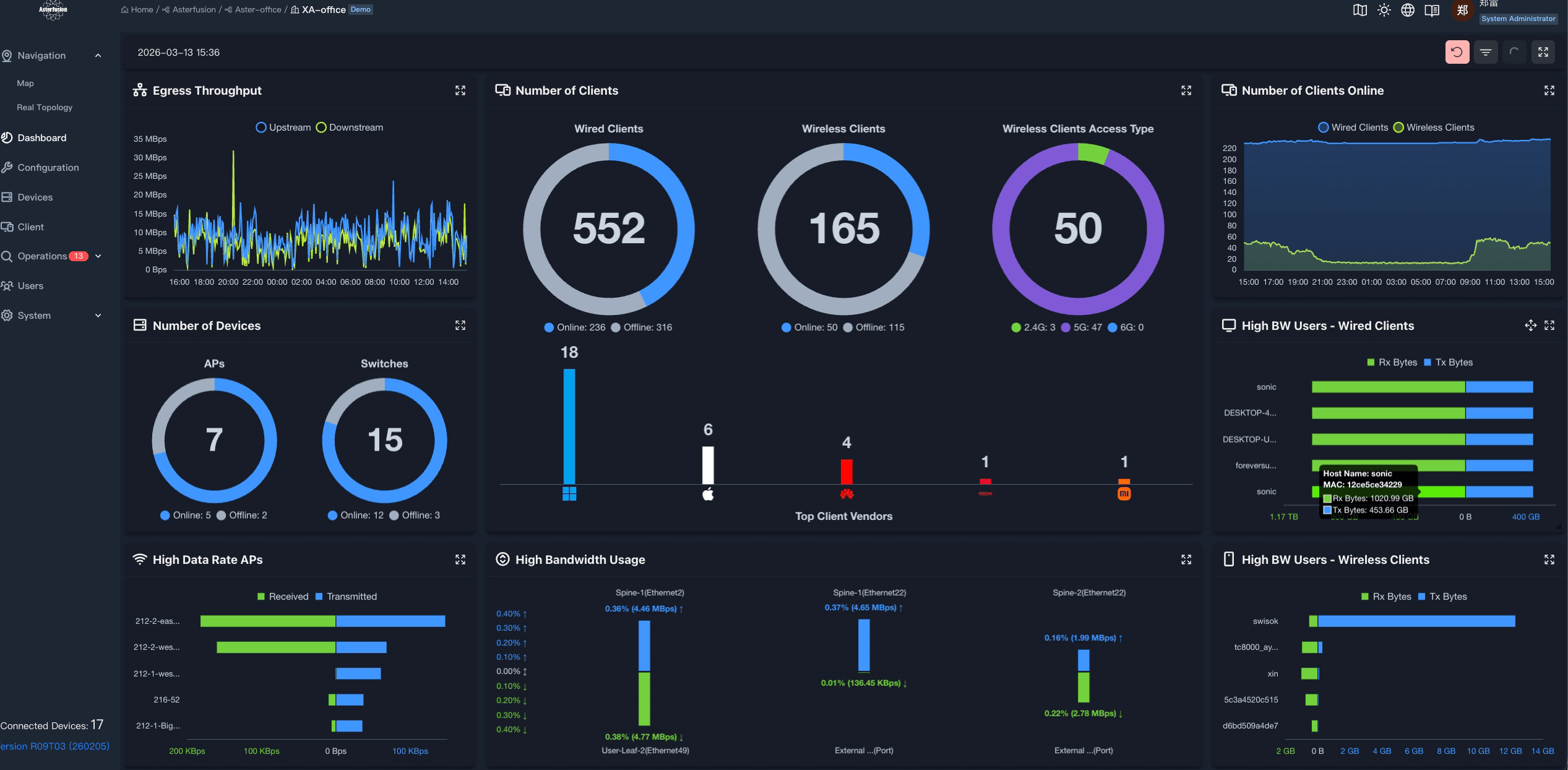
Dashboard
Real-Time Network Overview
Monitor egress throughput, total wired (552) and wireless (165) clients, APs and switches status, and top bandwidth users — all from one live dashboard screen.
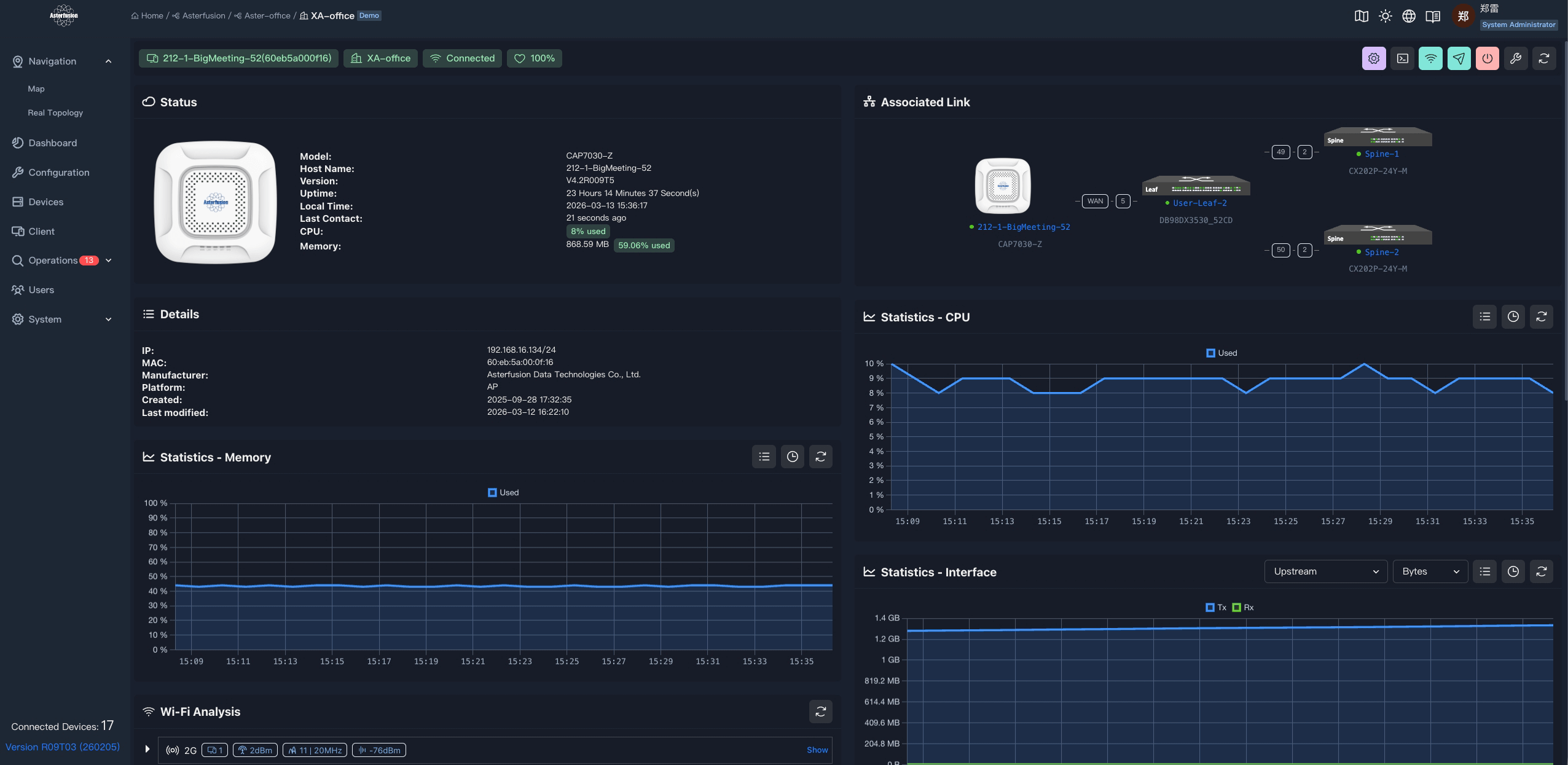
AP Management
Per-AP Health & Statistics
Drill into any access point for CPU %, memory usage, interface throughput, uptime, and the physical association topology — all updated in real time.
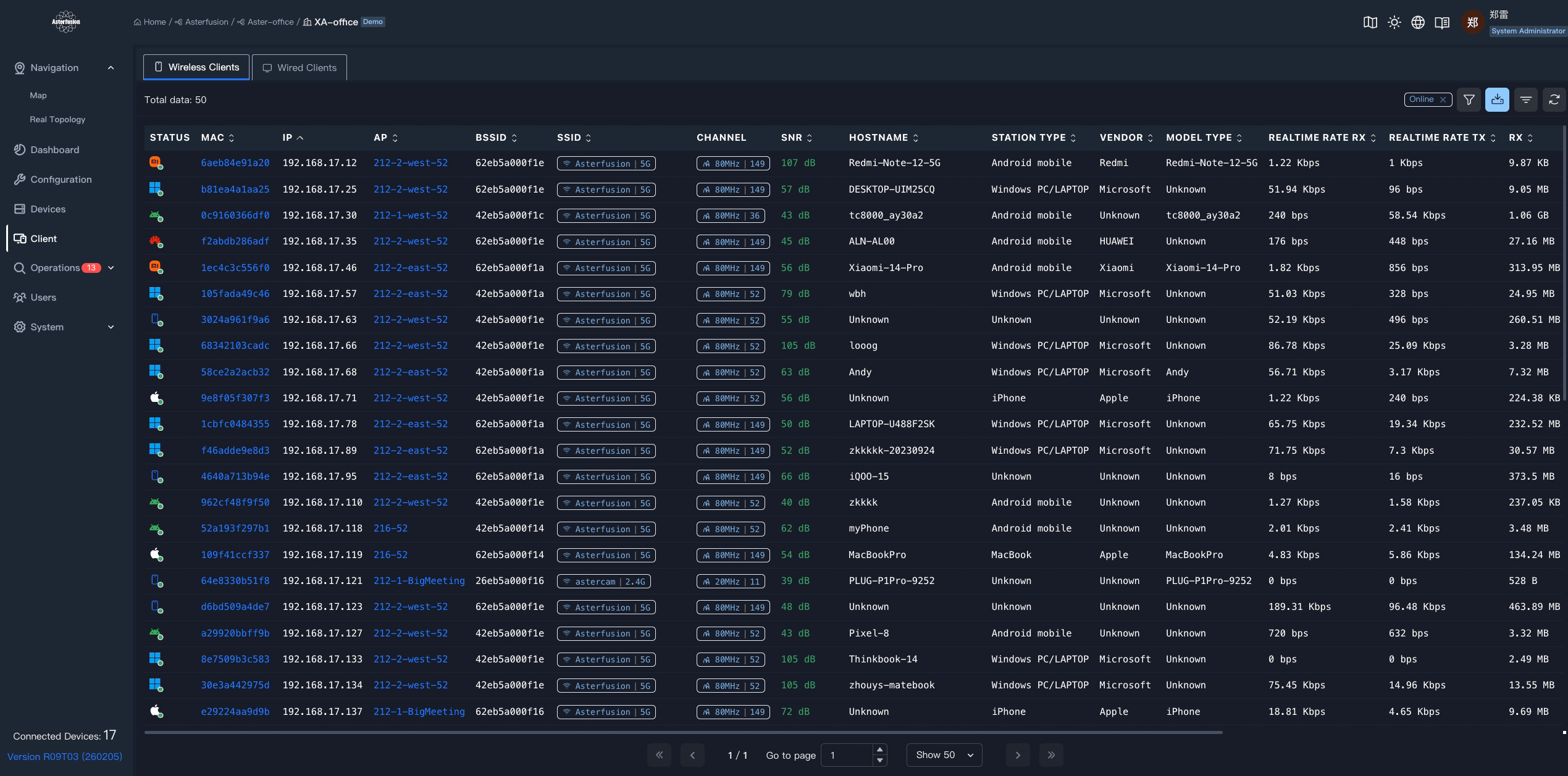
Client Visibility
Complete Wireless Client Table
See every wireless client: MAC, IP, associated AP, SSID, channel, SNR, station type, vendor, and real-time Rx/Tx rates — filterable and sortable.
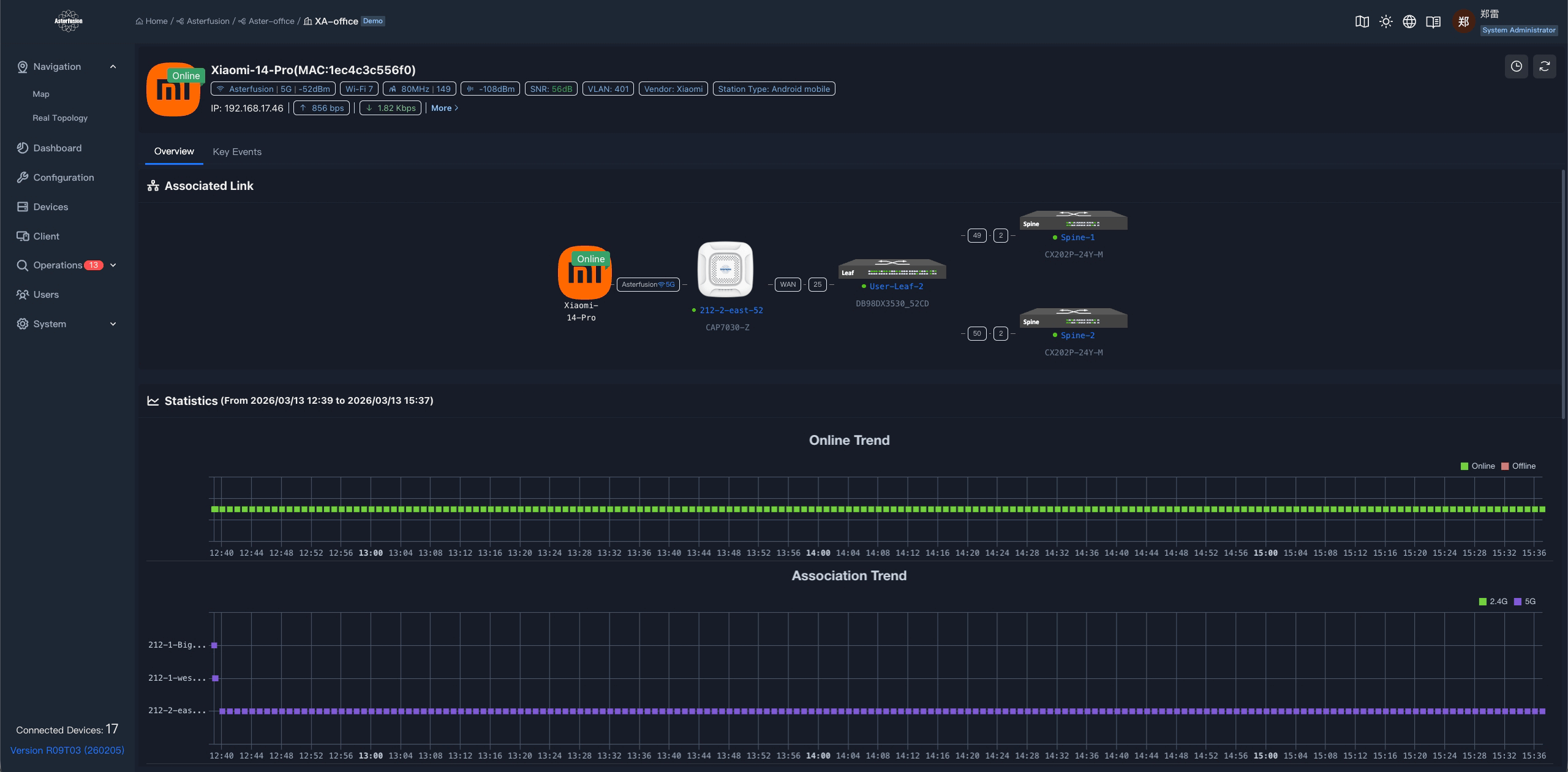
Client Analytics
Per-Client Online & Association Trend
Track any client's online/offline history and which APs it has associated to over time — useful for diagnosing roaming gaps or coverage dead zones.
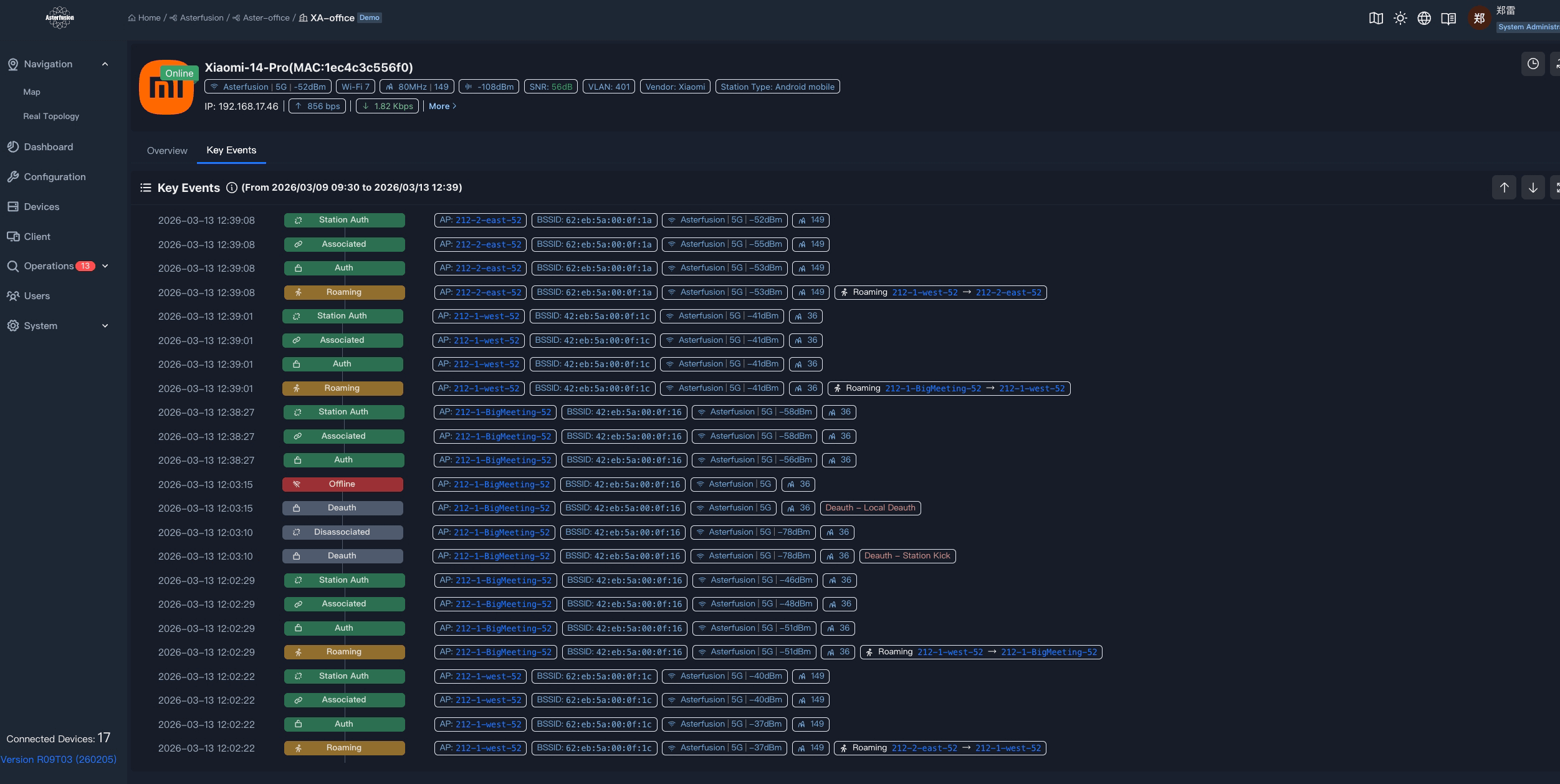
Roaming & Events
Full Client Event Timeline
Every authentication, association, deauth, and roaming handoff is logged with timestamps, BSSID, signal level, and channel — making RF troubleshooting precise and fast.
Three Ways to Flash OpenWiFi Firmware
Choose the method that matches your AP's current state and hardware platform. Click a card to jump to the full step-by-step guide.
METHOD 01 - Install via UBoot
The primary method for factory-fresh APs or devices without a running OS. Uses a TFTP server to deliver the image directly into NAND flash via the U-Boot bootloader console. Suited to Qualcomm-based APS.
1 Set up a TFTP server
Place the OpenWiFi firmware binary in the TFTP root directory. Use a short, accessible filename to avoid command-line errors. Ensure the TFTP server is reachable on the same network segment as the AP.
2 Connect to the AP via serial port
Some APs expose a serial port by default — USB or RJ45. If yours does not, open the AP enclosure and connect DuPont jumper wires to the serial header on the main board. Use settings:115200 baud, 8N1. Wire TTL Tx → AP Rx, TTL Rx → AP Tx, GND ↔ GND, VCC 3.3 V ↔ VCC 3.3 V.
3 Interrupt boot to enter the U-Boot console
Power on the AP and press any key quickly when prompted to stop the autoboot countdown and drop into the U-Boot command prompt.
4 Download firmware via TFTP and flash
For Qualcomm-based APs, run the commands shown in the terminal opposite. The AP will reboot into OpenWiFi automatically.
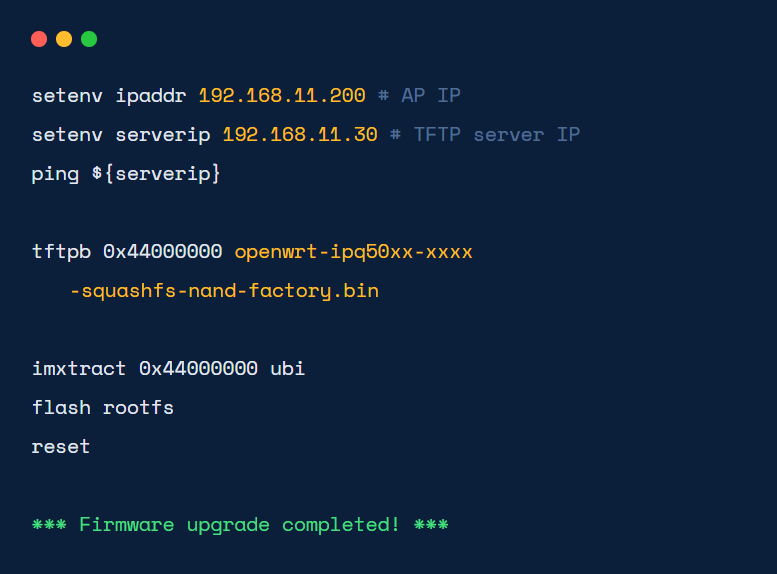
METHOD 02 - Install via Upgrade via Old AP System
For APs already running a Linux-based AP OS. Copy the new firmware package to the device over the network using scp, then trigger the upgrade with a single sysupgrade command. No disassembly needed.
1 Obtain the firmware .tar file
Contact Asteraix support to receive the sysupgrade-compatible image for your AP model.
2 Copy firmware to the AP
Use scp to transfer the file directly to the AP's filesystem. Ensure SSH access is available.
3 Run sysupgrade
Execute the command shown. The -F flag forces the upgrade regardless of compatibility checks. The AP will reboot automatically.
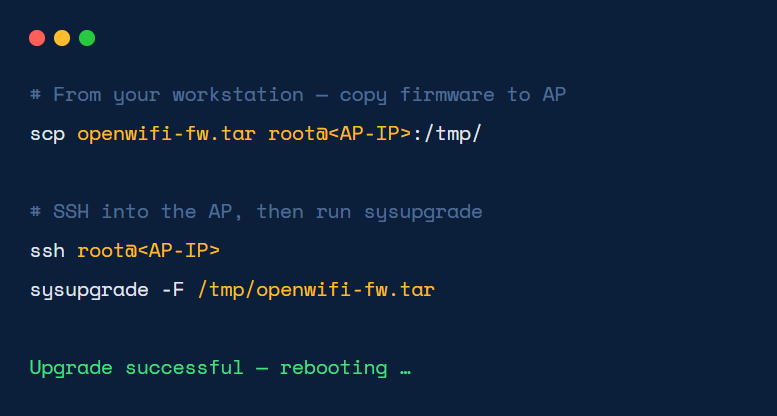
METHOD 03 - MTK Serial Boot Menu
For MediaTek-based APs that expose an interactive boot menu over the serial port. Navigate the U-Boot menu to select the TFTP upgrade option and provide network details. The device downloads and flashes the image automatically.
1 Place image on TFTP server
Use a short filename such as fw.bin to avoid MTK menu input limitations.
2 Connect via serial and enter the U-Boot boot menu
Interrupt boot to access the MTK interactive menu. Select Upgrade firmware.
3 Select TFTP load method and enter network info
Choose option 0 – TFTP client. Enter the AP IP, TFTP server IP, netmask, and filename (fw.bin).
4 Wait for download and flash to complete
The AP transfers the image, writes it to flash, and reboots into OpenWiFi automatically.
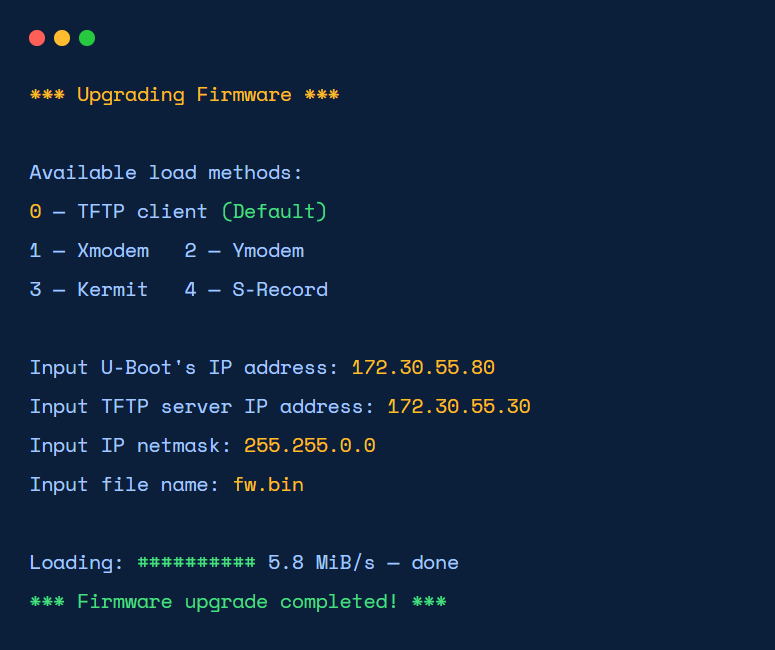
Serial Port Connection Guide
Required for U-Boot and MTK serial-menu methods. Follow the wiring table below to connect your TTL adapter to the AP's serial header.
Serial settings: 115200 baud · 8N1
TTL Adapter | → | AP Header |
|---|---|---|
Tx | → | Rx |
Rx | → | Tx |
GND | → | GND |
VCC 3.3 V | → | VCC 3.3 V |
⚠ Cross Tx and Rx. Connect the adapter's Tx to the AP's Rx and vice versa — this is a common wiring mistake. Use 3.3 V logic levels only; 5 V may damage the AP's serial header.
Locating the serial port on your AP
USB Serial (exposed)-- Some APs ship with a USB serial port accessible from the outside — plug in directly, no disassembly required.
RJ45 Serial (exposed) -- Others use an RJ45 connector on the housing as a console port. Use a rollover cable with an RJ45-to-DB9 adapter.
Internal header (requires opening) -- If no external serial port is present, open the AP enclosure and use DuPont jumper wires on the PCB serial header. Refer to the board silk-screen for Tx/Rx/GND labels.
Already Have These APs? We Have the Firmware.
Beyond Asteraix's own OpenWiFi AP lineup, we provide ready-to-flash images for the following third-party models.
📶 EAP101 | 📶 EAP102 | 📶 EAP105 |
📶 RAP630C-311G | 📶 hfcl_ion4xe | + More on request |
Don't see your model? Visit the full TIP OpenWiFi supported hardware list at tip-1.gitbook.io/openwifi. We will adapt and compile a custom OpenWiFi image for your specific model — contact us with the make and model. | ||
For hardware not on our pre-validated list, Asteraix's firmware engineering team will assess the chipset platform, source the appropriate OpenWiFi board support package, compile a model-specific image, and deliver it ready for flashing — so your team can skip the toolchain setup entirely.
After flashing, all AP models — regardless of original manufacturer — appear identically within the ACC controller dashboard.
Unified device inventory across mixed-vendor APs
Identical configuration templates applied to any onboarded model
Real-time health monitoring: CPU, memory, radio status, firmware version
Remote firmware push from ACC to all managed APs
| Third-Party AP Firmware License User Manual | How to install OpenWiFi image (PDF) |